

Background:
Do you want to test and benchmark your hard disks storage media in your latest Ubuntu system just like how CrystalDiskMark on Windows system? If you’re running a homelab, NAS, or server, understanding your storage performance is critical. Whether you’re using HDDs, SSDs, NVMe, ZFS, or LVM, this Universal Disk FIO Benchmark Tool gives you accurate, repeatable results with minimal effort.
This guide walks you through what the script does, how to use it, and how to interpret the results. This Bash script is a fully automated disk benchmarking tool powered by fio (a disk performance testing tool) with various profiles depending on the detected storage media type (HDD, SSD, NVMe, ZFS, LVM)
First, let’s understand what this script is supposed to do:
- Detects your storage type (HDD, SSD, NVMe, ZFS, LVM)
- Raw disk performance vs. real-world impact with OS caching enabled?
- Applies optimized test profiles automatically
- Runs sequential and random read/write benchmarks
- Reports average performance across multiple runs
- Optionally shows disk temperature and health
- Cleans up safely if interrupted
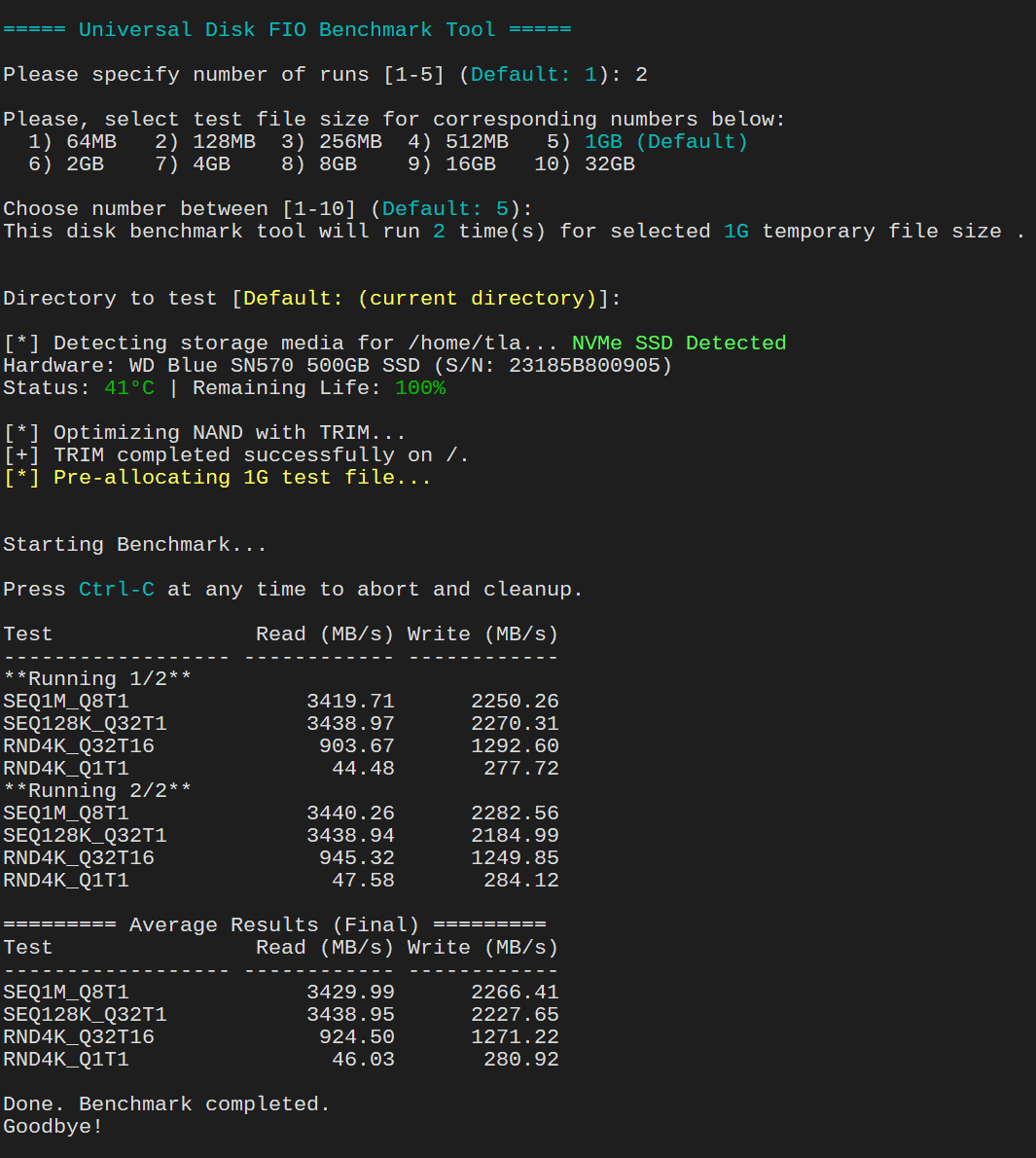
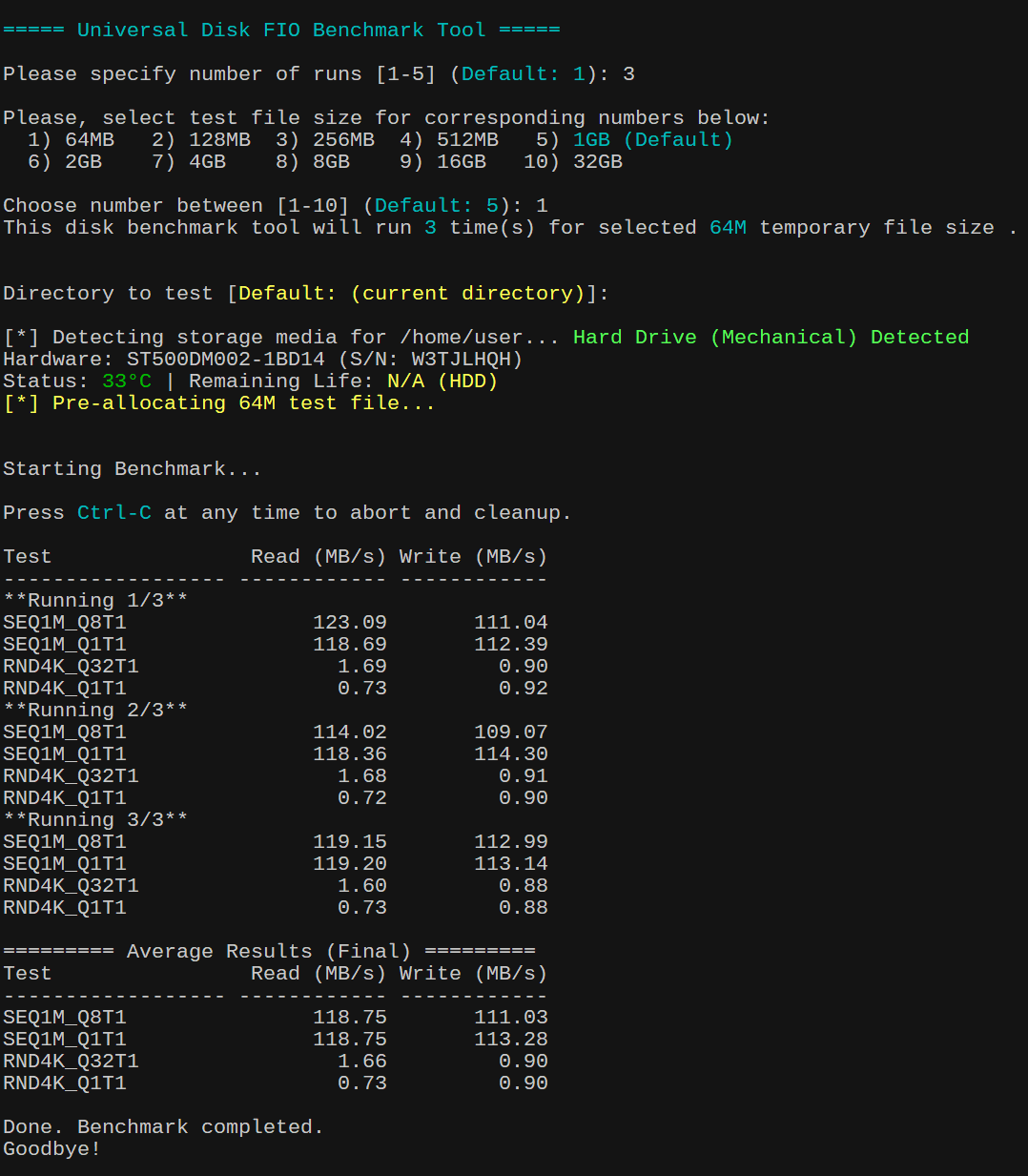

⚙️ Requirements
Before running the script, install required tools in your Ubuntu 24.04 LTS. Open your terminal and run the following command to ensure dependencies are met in your Ubuntu system. You will need to install the following packages:
fio: The core benchmarking tool used to perform the actual I/O tests. Without this, the script cannot execute the storage tests (SEQ1M,RND4K, etc.).jq: A lightweight command-line JSON processor used by the script to parse and extract bandwidth results from thefiooutput. The script requestsfioto output results in JSON format.jqis used to pull specific numbers (likebwfor bandwidth) out of that complex data so it can be averaged and displayed.
sudo apt update && sudo apt install fio jq -y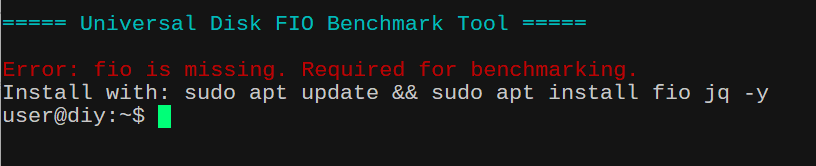
💡 Optional (recommended for health stats)
You don’t need to install these packages if you don’t want to. It is not required for the script to run. If you want to see your storage media temperature and health status, it is recommended to install these tools as well.
sudo apt install smartmontools nvme-cli -y
▶️ How to Use
- Save the Script
In your home directory or any other directory with “executable” permission, create a file usingnano(small editor for on the terminal) and then copy and paste the content of the script below. Save it asfio-benchmark.shIn any other directories except /home, you might have to usesudocommand to create a file.nano fio-benchmark.sh - Make it Executable
chmod +x fio-benchmark.sh - Run the Script
sudo ./fio-benchmark.sh
⚠️ Root is required to clear system cache for accurate benchmarking.

🧠 Step-by-Step Walkthrough
- Select Disk Benchmark Options:
There are 2 options here. Whether you want to seeRAWdisk performance vs.real-worldimpact with OS caching enabled. RAW disk performance tends to show lower numbers especially random 4K benchmark with low queue and low threadRND4K_Q1T1The RAW disk performance benchmark actually gives you better picture of what the drive (in case ofNVMe) can actually do without theRAMcaching. This is trueSSDperformance and good for testingdatabaseandserverworkloads. On the other hand, real-world impact with OS caching enabled often shows “how fast it feels” and simulates desktop usage. - Select Number of Runs:
You can run the test benchmark multiple times (1–5). More runs = more accurate averages. Default is 3 runs to get accurate disk performance results. - Choose Test File Size:
Options range from 64MB → 32GB. ForSSD/MVMe, selecting 1GB-4GB test file size will suffice. For ZFS pool, selecting option that is larger than your systemRAMto bypassARC cacheis recommended. Please note: this script will benchmark performance of the ZFS pool overall and not so much with underlining individual drives that makeup the pools. In that sense, you can compare pool performance between each ZFS RAID configuration. - Select Target Directory
You can benchmark any mounted path ie./mnt/storageor/tank(ZFS mounted storage) and it will verify write access before continuing. Default will be current directory where your prompt is.
🔎 Smart Storage Detection
The script automatically detects:
| Type | Detection Method |
|---|---|
| ZFS | Filesystem type |
| LVM | Device mapper |
| NVMe | Device name |
| SSD | Non-rotational flag |
| HDD | Rotational disks |
🧾 Hardware Info & Health
If supported, the script displays:
- Disk model & serial
- Temperature (°C)
- Remaining lifespan (%)
Example:
Hardware: Samsung SSD 970 EVO (S/N: XXXXX)
Status: 36°C | Remaining Life: 92%
⚡ Benchmark Profiles
The script intelligently selects test profiles based on storage type.
🟤 HDD Profile
- Sequential (1M blocks)
- Random (4K blocks)
- Low queue depth
⚡ SSD / NVMe Profile
- TRIM optimization before testing
- High queue depth for realistic performance
- Mixed workloads
🧩 ZFS / LVM Profile
- Higher queue depth
- Tests filesystem overhead
- Warns if ARC cache may affect results
🧪 What Gets Tested
Each run includes:
| Test | Description |
SEQ1M_Q8T1 | Sequential large block |
SEQ128K_Q32T1 | Mid-size throughput |
RND4K_Q32T16 | High-load random |
RND4K_Q1T1 | Low-latency random |
📊 Example Output
Test               Read (MB/s)   Write (MB/s)
------------------ ------------ ------------
SEQ1M_Q8T1           520.34        498.21
SEQ128K_Q32T1        610.12        590.45
RND4K_Q32T16         320.55        300.10
RND4K_Q1T1            45.22         42.88
Then final averages:
========= Average Results (Final) =========
Test               Read (MB/s)   Write (MB/s)
------------------ ------------ ------------
SEQ1M_Q8T1           525.00        500.00
...
🧹 Safe Cleanup
- Temporary test file is removed automatically
- Press
Ctrl+Canytime → script cleans up safely
🎯 Conclusion
This script gives you a powerful, all-in-one benchmarking solution that adapts to your storage automatically. It’s perfect for:
- Homelabs
- NAS tuning
- Comparing disks
- Troubleshooting performance issues
#!/bin/bash

# 1. Colors & Globals
CYAN='\033[0;36m'; YELLOW='\033[1;33m'; GREEN='\033[0;32m'; RED='\033[0;31m'; NC='\033[0m'
TEMP_FILE=""

echo -e "\n${CYAN}===== Universal Disk FIO Benchmark Tool =====${NC}\n"


# 2. Root & Dependency Check
[[ $EUID -ne 0 ]] && echo "Please run with sudo to clear system caches for more accurate result." && exit 1

# Exit if critical tools are missing
for pkg in fio jq; do
    if ! command -v $pkg &> /dev/null; then
        echo -e "${RED}Error: $pkg is missing. Required for benchmarking.${NC}"
        echo "Install with: sudo apt update && sudo apt install fio jq -y"
        exit 1
    fi
done

# Optional tools check (warns but doesn't exit)
MISSING_OPTIONAL=""
command -v smartctl &> /dev/null || MISSING_OPTIONAL+="smartmontools "
command -v nvme &> /dev/null || MISSING_OPTIONAL+="nvme-cli "

if [[ -n "$MISSING_OPTIONAL" ]]; then
    echo -e "${YELLOW}Note: Optional tools are missing for storage media health/temp info.${NC}"
    echo -e "\nTo enable these features, run: sudo apt install $MISSING_OPTIONAL-y"
    echo -e "Otherwise, you can continue....\n"
fi


# 3. Cleanup Trap Function ----
cleanup() {
    echo -e "\n\n${YELLOW}[!] Benchmark aborted.${NC}"
    if [[ -f "$TEMP_FILE" ]]; then
        echo "[*] Removing temporary test file..."
        rm -f "$TEMP_FILE"
    fi
    echo -e "Cleanup complete. Goodbye!\n"
    exit 1
}
trap cleanup SIGINT


# 4. Inputs with Defaults
echo -e "\nBenchmark Mode Options:"
echo "  1) OS caching enabled — reflects real-world app behavior"
echo "  2) RAW disk performance — bypass OS cache for true disk speed"
read -p "$(echo -e "Choose mode [1-2] ${CYAN}(Default: 2)${NC}: ")" CACHE_MODE
CACHE_MODE=${CACHE_MODE:-2}


if [[ "$CACHE_MODE" == "1" ]]; then
    DIRECT_FLAG=0
    MODE_LABEL="OS Cache Enabled"
    echo -e "${YELLOW}[*] OS caching enabled. Benchmark will use --direct=0${NC}"
else
    DIRECT_FLAG=1
    MODE_LABEL="RAW Disk"
    echo -e "${YELLOW}[*] RAW disk benchmark. Benchmark will use --direct=1${NC}"
fi


read -p "$(echo -e "Please specify number of runs [1-5] ${CYAN}(Default: 3)${NC}: ")" RUNS
RUNS=${RUNS:-3}

# Quick validation: if input is not 1-5, default to 3
if [[ ! "$RUNS" =~ ^[1-5]$ ]]; then
    echo -e "[!] $RUNS is invalid input. Defaulting to only 3 run."
    RUNS=3
fi

# ---- Size Selection -----
echo -e "\nPlease, select test file size for corresponding numbers below:"
printf "  1) 64MB   2) 128MB  3) 256MB  4) 512MB   5) ${CYAN}1GB (Default)${NC}\n"
printf "  6) 2GB    7) 4GB    8) 8GB    9) 16GB   10) 32GB\n"

read -p "$(echo -e "\nChoose number between [1-10] ${CYAN}(Default: 5)${NC}: ")" SIZE_OPT

# If user hits Enter (empty), or types anything else, we handle it in the case
case "${SIZE_OPT:-5}" in
    1) SIZE="64M" ;; 2) SIZE="128M" ;; 3) SIZE="256M" ;; 4) SIZE="512M" ;;
    5) SIZE="1G"  ;; 6) SIZE="2G"   ;; 7) SIZE="4G"   ;; 8) SIZE="8G"   ;;
    9) SIZE="16G" ;; 10) SIZE="32G" ;;
    *)
        # This catches  anything else not in 1-10
       echo -e "[!] $SIZE_OPT is invalid input. Defaulting to 1GB test file size."
       SIZE="1G"  ;; # Fallback for invalid input or Enter
esac

echo -e "This disk benchmark tool will run ${CYAN}$RUNS${NC} time(s) for selected ${CYAN}$SIZE${NC} temporary file size .\n"


# 5. Directory Selection
while true; do
    read -p "$(echo -e "\nDirectory to test [${YELLOW}Default: (current directory)${NC}]: ")" TEST_DIR
    TEST_DIR=${TEST_DIR:-.}
    if [[ -d "$TEST_DIR" ]] && touch "$TEST_DIR/.fio_test" 2>/dev/null; then
        rm "$TEST_DIR/.fio_test"
        TEST_DIR=$(realpath "$TEST_DIR")
        break
    else
        echo -e "${YELLOW}[!] Error: Invalid path or no write permission.${NC}"
    fi
done


# 6. Automated Media Detection ----
echo -ne "\n[*] Detecting storage media for $TEST_DIR... "

# 1. Check for ZFS (Check filesystem type)
FS_TYPE=$(df -T "$TEST_DIR" | tail -1 | awk '{print $2}')

if [[ "$FS_TYPE" == "zfs" ]]; then
    MEDIA_TYPE="3"
    MEDIA_LABEL="ZFS Pool"
else
    # 2. Identify the device and check for LVM (Check if device is on mapper or type is lvm)
    DEV_PATH=$(df "$TEST_DIR" | tail -1 | awk '{print $1}')

    # Check if the device is a dm (device mapper) or explicitly labeled as LVM
    IS_LVM=$(lsblk -no TYPE "$DEV_PATH" | head -1)

    if [[ "$IS_LVM" == "lvm" || "$DEV_PATH" == /dev/mapper/* ]]; then
        MEDIA_TYPE="3" # LVM uses the same "optimized" profile as ZFS in your script
        MEDIA_LABEL="LVM Logical Volume"
    else
        # 3. Detect physical media (NVMe vs SSD vs HD)
        DISK_NAME=$(lsblk -no pkname "$DEV_PATH" | head -1)
        [[ -z "$DISK_NAME" ]] && DISK_NAME=$(basename "$DEV_PATH")

        if [[ "$DISK_NAME" == nvme* ]]; then
            MEDIA_TYPE="2"
            MEDIA_LABEL="NVMe SSD"
        else
            IS_ROTA=$(cat "/sys/block/$DISK_NAME/queue/rotational" 2>/dev/null)
            if [[ "$IS_ROTA" == "0" ]]; then
                MEDIA_TYPE="2"
                MEDIA_LABEL="SATA SSD"
            else
                MEDIA_TYPE="1"
                MEDIA_LABEL="Hard Drive (Mechanical)"
            fi
        fi
    fi
fi

echo -e "\033[1;32m$MEDIA_LABEL Detected\033[0m"

# ---- 6.5 Hardware ID Section (Separately) ----
if [[ "$MEDIA_TYPE" == "3" ]]; then
    if [[ "$MEDIA_LABEL" == "ZFS Pool" ]] && command -v zpool &>/dev/null; then
        # Extract Pool Name from the mount point
        Z_POOL=$(df "$TEST_DIR" | tail -1 | awk '{print $1}' | cut -d/ -f1)
        Z_STATUS=$(zpool status "$Z_POOL" | grep "state:" | awk '{print $2}')
        # Get first physical disk for a sample
        Z_SAMPLE=$(zpool list -v "$Z_POOL" 2>/dev/null | awk '/sd/ || /nvme/ {print $1; exit}')
        HW_INFO="ZFS Pool: $Z_POOL (Status: ${GREEN}$Z_STATUS${NC})"
        RAW_DISK="/dev/$Z_SAMPLE"
    else
        # LVM Info
        LVM_INFO=$(lvs --noheadings -o vg_name,lv_name "$DEV_PATH" 2>/dev/null | awk '{print $1"/"$2}')
        HW_INFO="LVM Volume: ${LVM_INFO:-Unknown}"
        RAW_DISK=$(lsblk -no pkname "$DEV_PATH" | head -1)
        [[ -z "$RAW_DISK" ]] && RAW_DISK="$DEV_PATH"
    fi
else
    # Physical Disk (SATA/NVMe)
    RAW_DISK="/dev/$DISK_NAME"
    MODEL=$(lsblk -dno MODEL "$RAW_DISK" 2>/dev/null | xargs)
    SERIAL=$(lsblk -dno SERIAL "$RAW_DISK" 2>/dev/null | xargs)
    # Fallback for Serial using udevadm
    [[ -z "$SERIAL" ]] && SERIAL=$(udevadm info --query=property --name="$RAW_DISK" 2>/dev/null | grep "ID_SERIAL_SHORT" | cut -d= -f2)
    HW_INFO="Hardware: ${MODEL:-Unknown} (S/N: ${SERIAL:-N/A})"
fi

echo -e "$HW_INFO"


# 6. Capture full SMART data once to improve performance
SMART_DATA=$(smartctl -a "$RAW_DISK" 2>/dev/null)

if [[ -n "$SMART_DATA" ]]; then
    echo -ne "Status: "

    # 1. DETECT DRIVE TYPE
    # SAS drives often show "Transport protocol: SAS" or similar in info
    IS_SAS=$(echo "$SMART_DATA" | grep -i "Transport protocol.*SAS")

    if [[ -n "$IS_SAS" ]]; then
        # --- SAS DRIVE LOGIC ---
        TEMP=$(echo "$SMART_DATA" | awk -F': ' '/Current Drive Temperature/ {print $2}' | grep -o '[0-9]*' | head -1)
        # SAS health is usually just "OK" or "PASSED" via --health
        HEALTH_STATUS=$(smartctl -H "$RAW_DISK" 2>/dev/null | grep -i "test result" | awk '{print $NF}')
        REMAINING="$HEALTH_STATUS"
    elif [[ "$RAW_DISK" == *nvme* ]]; then
        # --- NVMe LOGIC ---
        # 1. Grab temperature (handles spaces/labels correctly)
        TEMP=$(echo "$SMART_DATA" | awk -F': ' '/^Temperature:/ {print $2; exit}' | grep -o '[0-9]*' | head -1)

        # 2. Grab Percentage Used (handles "Percentage Used:         0%")
        # This looks for the line, takes everything after the colon, and strips all but numbers
        RAW_USED=$(echo "$SMART_DATA" | grep -i "Percentage.Used" | cut -d':' -f2 | tr -dc '0-9')

        if [[ -n "$RAW_USED" ]]; then
            # Force base-10 to handle 08, 09, etc.
            REMAINING="$(( 100 - 10#$RAW_USED ))%"
        else
            REMAINING=""
        fi


    else
        # --- SATA SSD LOGIC (Multi-Brand Support) ---
        # 1. Temperature: Grab raw value (Col 10) and apply sanity check (0-100°C)
        RAW_TEMP=$(echo "$SMART_DATA" | awk '/194 Temperature_Celsius|190 Airflow_Temperature/ {print $10; exit}' | grep -o '[0-9-]*')
        if [[ -n "$RAW_TEMP" ]] && (( RAW_TEMP > 0 && RAW_TEMP < 100 )); then
            TEMP="$RAW_TEMP"
        else
            TEMP=""
        fi

        # 2. Remaining Life:
        # For ADATA (ID 169), we want Column 10 (Raw)
        # For Samsung/Others (IDs 177, 231, 202), we want Column 4 (Normalized)
        REMAINING_RAW=$(echo "$SMART_DATA" | awk '
            /169 Remaining_Lifetime/ {print $10; exit}
            /177 Wear_Leveling_Count|231 SSD_Life_Left|202 Percent_Lifetime_Remain/ {print $4; exit}
            /232 Available_Reserv_Space/ {print $4; exit}
        ' | grep -o '[0-9]*')

        if [[ -n "$REMAINING_RAW" ]]; then
            # Use 10# to handle Samsung's leading zeros (e.g., 098)
            REMAINING="$(( 10#$REMAINING_RAW ))%"
        fi
    fi


    # 2. FINAL DISPLAY
    [[ -z "$TEMP" ]] && TEMP_DISP="${YELLOW}N/A${NC}" || TEMP_DISP="${GREEN}${TEMP}°C${NC}"
    [[ -z "$REMAINING" ]] && LIFE_DISP="${YELLOW}N/A${NC}" || LIFE_DISP="${GREEN}${REMAINING}${NC}"

    echo -e "${TEMP_DISP} | Remaining Life: ${LIFE_DISP}"
fi


# 7. Profiles  & Allocation
if [ "$MEDIA_TYPE" == "1" ]; then
    # HD Profile Label | ReadMode | WriteMode | BlockSize | Depth | Threads
    tests=("SEQ1M_Q8T1 read write 1M 8 1" "SEQ1M_Q1T1 read write 1M 1 1" "RND4K_Q32T1 randread randwrite 4k 32 1" "RND4K_Q1T1 randread randwrite 4k 1 1")
elif [ "$MEDIA_TYPE" == "2" ]; then
    echo -e "\n[*] Optimizing NAND with TRIM..."
    # fstrim needs the mount point, so we find it based on your TEST_DIR
    MOUNT_POINT=$(df --output=target "$TEST_DIR" | tail -1)
    if fstrim -v "$MOUNT_POINT" &>/dev/null; then
        echo "[+] TRIM completed successfully on $MOUNT_POINT."
    else
        echo "[!] Warning: TRIM failed or not supported on this mount/device."
    fi
    # Give the controller a moment to reorganize cells
    sleep 3

    # SSD/NVMe Profile (High Queue Depths)
    tests=("SEQ1M_Q8T1 read write 1M 8 1" "SEQ128K_Q32T1 read write 128k 32 1" "RND4K_Q32T16 randread randwrite 4k 32 16" "RND4K_Q1T1 randread randwrite 4k 1 1")
else
    # ZFS/LVM Profile (Testing overhead and pool throughput)
    echo "[!] Note: For ZFS, ensure SIZE ($SIZE) > System RAM to bypass ARC."
    tests=("SEQ1M_Q32T1 read write 1M 32 1" "SEQ128K_Q32T1 read write 128k 32 1" "RND4K_Q32T8 randread randwrite 4k 32 8" "RND4K_Q1T1 randread randwrite 4k 1 1")
fi

TEMP_FILE="$TEST_DIR/fio_bench_$(date +%s).tmp"
echo -e "${YELLOW}[*] Pre-allocating $SIZE test file...${NC}\n"
fallocate -l "$SIZE" "$TEMP_FILE" 2>/dev/null || \
fio --name=prep --filename="$TEMP_FILE" --size="$SIZE" --rw=write --bs=1M --direct=1 --ioengine=libaio --runtime=1 > /dev/null


# 8. Execution & Extraction
echo -e "\nStarting ${CYAN}$MODE_LABEL${NC} Benchmark...\n"
echo -e "Press ${CYAN}Ctrl-C${NC} at any time to abort and cleanup."

run_fio() {
    local MODE=$1 BS=$2 QD=$3 T=$4
    # 2. Clear System Caches
    sync && echo 3 | sudo tee /proc/sys/vm/drop_caches > /dev/null && sleep 3
    # 3. Execute FIO
    # refill_buffers prevents the drive or OS from compressing the data
    local RESULT=$(fio --name=benchmark \
        --filename="$TEMP_FILE" \
        --rw="$MODE" \
        --bs="$BS" \
        --iodepth="$QD" \
        --numjobs="$T" \
        --direct="$DIRECT_FLAG" \
        --invalidate=1 \
        --ioengine=io_uring \
        --size="$SIZE" \
        --runtime=30 \
        --refill_buffers \
        --time_based \
        --group_reporting \
        --output-format=json 2>/dev/null)
    # Echo the result
    echo "$RESULT"
}

# ---- Extract bandwidth (KiB/s to MB/s) ----
get_bw_read() { echo "$1" | jq -r '.jobs[0].read.bw / 1024' 2>/dev/null || echo "0"; }
get_bw_write() { echo "$1" | jq -r '.jobs[0].write.bw / 1024' 2>/dev/null || echo "0"; }

declare -A READ_SUM; declare -A WRITE_SUM

printf "\n%-18s %12s %12s\n" "Test" "Read (MB/s)" "Write (MB/s)"
printf "%-18s %12s %12s\n" "------------------" "------------" "------------"

for ((i=1; i<=RUNS; i++)); do
    echo "**Running $i/$RUNS**"
    for t in "${tests[@]}"; do
        set -- $t
        NAME=$1; R_MODE=$2; W_MODE=$3; BS=$4; QD=$5; THREAD=$6

        # Run Write Pass
        JSON_W=$(run_fio "$W_MODE" "$BS" "$QD" "$THREAD")
        WRITE=$(get_bw_write "$JSON_W")

        # Run Read Pass
        JSON_R=$(run_fio "$R_MODE" "$BS" "$QD" "$THREAD")
        READ=$(get_bw_read "$JSON_R")

        # Accumulate totals for averaging
        READ_SUM[$NAME]=$(awk "BEGIN {print ${READ_SUM[$NAME]:-0} + $READ}")
        WRITE_SUM[$NAME]=$(awk "BEGIN {print ${WRITE_SUM[$NAME]:-0} + $WRITE}")

        printf "%-18s %12.2f %12.2f\n" "$NAME" "$READ" "$WRITE"
    done
done


# 9. Result Averages
echo -e "\n========= Average Results (Final) ========="
printf "%-18s %12s %12s\n" "Test" "Read (MB/s)" "Write (MB/s)"
printf "%-18s %12s %12s\n" "------------------" "------------" "------------"
for t in "${tests[@]}"; do
    NAME=$(echo $t | awk '{print $1}')
    AVG_R=$(awk "BEGIN {printf \"%.2f\", ${READ_SUM[$NAME]} / $RUNS}")
    AVG_W=$(awk "BEGIN {printf \"%.2f\", ${WRITE_SUM[$NAME]} / $RUNS}")
    printf "%-18s %12s %12s\n" "$NAME" "$AVG_R" "$AVG_W"
done


# 10. FINAL CLEANUP
if [[ -f "$TEMP_FILE" ]]; then
    rm -f "$TEMP_FILE"
    TEMP_FILE=""  # Reset global so the trap knows we are safe
fi

echo -e "\nDone. Benchmark completed."
echo -e "Goodbye!\n"